I remember when I first tried to reply with GIFs on Instagram, I actually got stuck and didn’t understand how it worked.
I wanted my conversations to feel more fun and expressive, but i kept sending normal text because I couldn’t find the GIF option properly. It felt like everyone else was using it easily, but i was missing something simple.
One day, i decided to fix this issue instead of ignoring it. I started checking every part of the Instagram chat screen and explored the message bar carefully.
After a little searching, i finally noticed the small GIF icon next to the text box. That was the moment everything became clear to me.
Once i understood how it works, replying with GIFs became very easy. Now i use them all the time to react, joke, and express my feelings in chats.
It made my Instagram conversations more creative, fun, and engaging than before.
What Are Instagram GIF Comments?
Instagram GIF comments are animated images you can post in the comment section instead of plain text.
These GIFs show reactions like laughing, loving, crying, or cheering. They help you express emotions in a more fun and visual way.
Instead of typing, you simply choose a GIF that matches your feeling and post it as a comment.
Why GIFs Enhance Your Instagram Engagement?
GIFs make your comments stand out. They grab attention faster than words. People are more likely to reply when they see a funny or emotional GIF.
They also increase interaction on posts because they feel more human and expressive. GIFs can help brands and users connect better with their audience in a simple and creative way.
Recent Updates to Instagram’s GIF Comment Feature
Instagram has improved GIF usage over time. Now users can easily search GIFs directly in comments. The search bar is faster and shows trending reactions. Some accounts also get access to more GIF libraries powered by third-party platforms. These updates make it easier to find the right GIF without leaving the app.
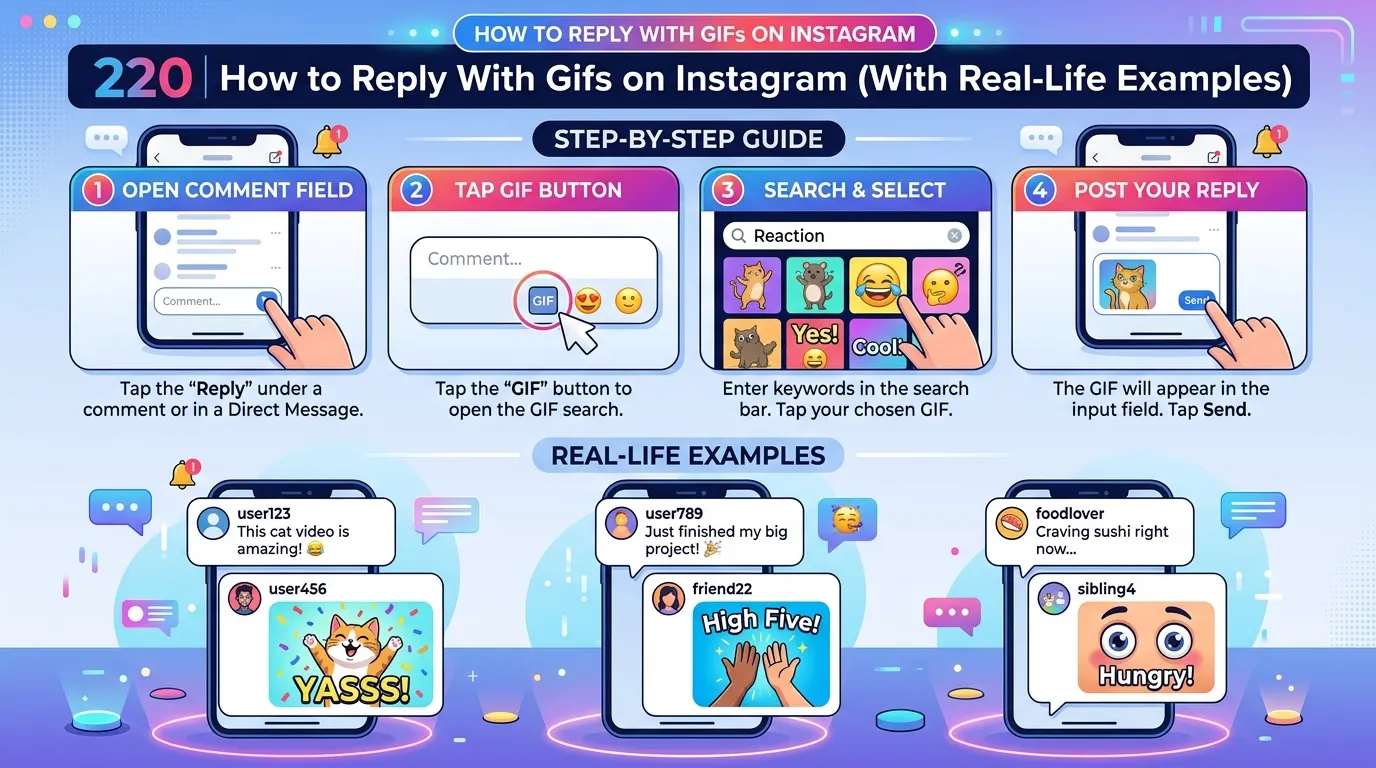
Step-by-Step Process for Adding GIFs to Instagram Comments (Mobile and Desktop)
Mobile Steps
- Open Instagram app
- Go to any post
- Tap on comment box
- Tap GIF icon
- Search your GIF
- Select and post it
Desktop Steps
- Open Instagram on browser
- Go to post
- Click comment box
- Use GIF option (if available)
- Search and choose GIF
- Post comment
5 Tips for Searching for the Perfect GIF Quickly
- Use simple keywords like happy, sad, or funny
- Try emotion-based words like love or shock
- Use trending meme names
- Search actor or celebrity reactions
- Use short words instead of long sentences
How to Delete GIFs From Instagram Comments?
- Go to your comment
- Tap and hold your GIF comment
- Select delete option
- Confirm deletion
- Your GIF comment will be removed instantly
Common Problems with GIF Comments and How to Resolve Them
- GIF not loading: refresh app or check internet
- GIF option missing: update Instagram app
- Search not working: clear cache
- Slow GIF response: restart device
- Wrong GIF appears: try different keywords
How to Use Instagram GIF Comments for Marketing Success?
GIF comments can boost engagement for brands. You can use them to:
- React to customer comments
- Show personality in replies
- Promote products in a fun way
- Join trending conversations
- Increase visibility on viral posts
Best Tips to Use GIF Comments on Instagram
- Use relevant GIFs only
- Don’t overuse them in every comment
- Match GIF tone with post mood
- Keep it simple and clear
- Use trending GIFs for better reach
Cute GIF Replies for Crush Girl
- Heart eyes reaction GIF
- Blushing smile GIF
- Shy waving GIF
- Cute teddy bear hug GIF
- Love sparkle GIF
- Romantic kiss GIF
- Sweet smiling face GIF
- Holding heart GIF
- Soft wink GIF
- Cute dancing love GIF
With GIFs on Instagram Download
To use GIFs on Instagram, you don’t usually download them separately. Instagram provides a built-in GIF library (powered by GIF platforms like GIPHY). You just search and use them directly inside comments or messages. If you want external GIFs, you can download them from GIF websites and share them as images or videos.
How to Use With GIFs on Instagram
- Open comment or chat
- Tap GIF option
- Search emotion or keyword
- Select GIF and send
- Use GIFs in stories replies too
- Combine GIFs with text for better expression
- Use trending GIFs for higher engagement
Conclusion:
Instagram GIF comments are a powerful way to make conversations fun, expressive, and engaging. They help users react quickly, increase interaction, and bring personality into comments.
if you are chatting with friends, replying to a crush, or growing a brand, GIFs make communication more creative and eye-catching.

Go, I am Noah Parker, a curious creator always chasing ideas that spark inspiration. I love exploring trends and sharing insights that help you stay ahead. On Replysz.com, I turn creativity into stories that connect and inspire.